An Old Hillbilly's Guide to BASH for Pentests: Automating, Logging, and Covering Your Butt

Show original YouTube description
Show transcript [en]
Oh man. Yeah. All right, we're good.
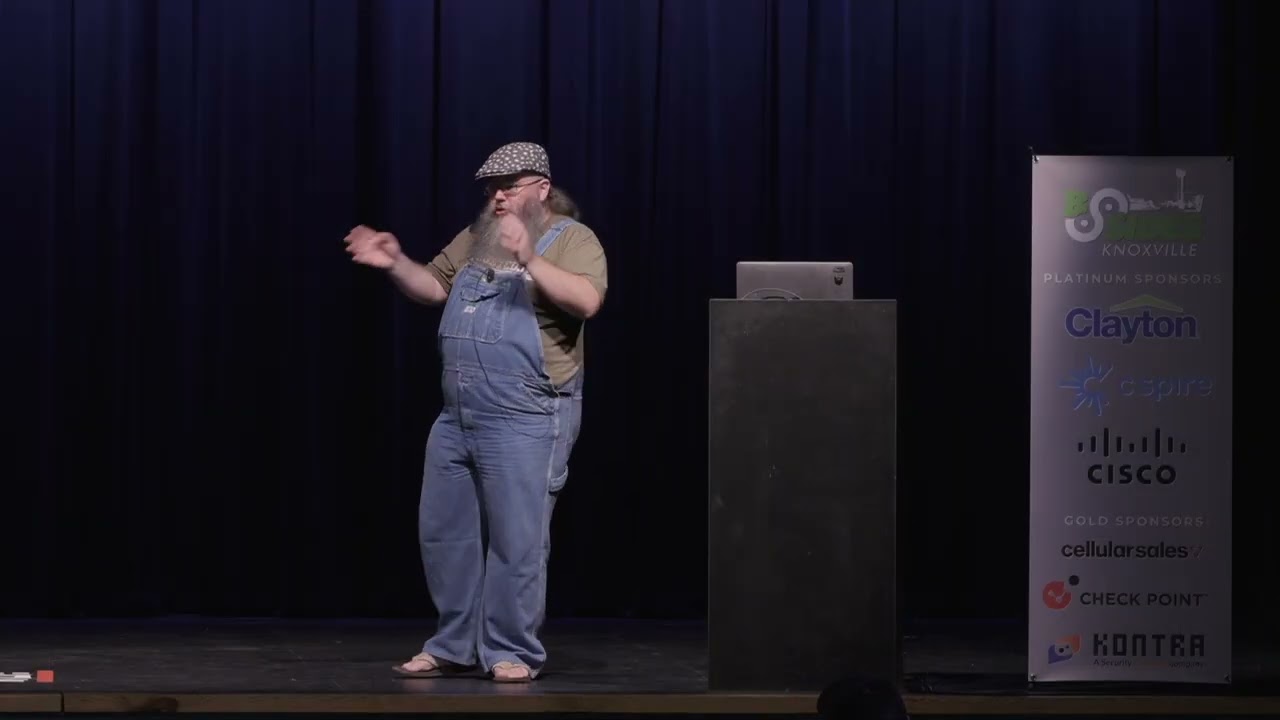
All right. Well, that was uh I know they do the walk out songs every year and I'm not particular as to what walkout song it is. So, I give them a few suggestions and say just surprise me or make up their own. And um surprise. Yes. Hey, I've had everything from this to like Disney's gummy bears and all kind of songs playing in the past. So, so yeah, this is always a fun place to be. Well, it's after lunch. We're all a little tired. We had a good talk just a little bit ago there. That was great. I do want to say thank you to Besides Knoxville here for having me out again. Thank for all of you all to coming out
and uh visiting and participating and enjoying and hopefully not getting bored out of your skull here in a few minutes. But uh whatever the case is, I do appreciate you all being here. Today we're going to be talking about Bash for Pentest. Well, in general, it's just like an intro to Bash with some techniques and what have you that can help out with Pentest or things to keep in mind as you're trying to write scripts for Pentest and what have you. Uh, it's things I've learned over the years, things that I have helped some younger or newer people into the industry when they're wanting to write scripts. I review their code and here's little things I point out to them. Just
things that help you out if you're not familiar with it. If you are, maybe it's something you're not doing currently or things that you just want to see a different way of doing it. That's more or less what we're talking about. uh focusing mostly on how you can like chain commands together, make automation, doing some logging, um making sure you have all the information you need to yeah, as I say there, cover your butt. In the case of at the end of an engagement, end of a testing, you're like, do I have this data? Don't I have this data? Just making sure you always do. That's where we're coming at with this. things that I would hope you might would
already know coming into this or at least be able to fake it enough to get by with um have uh some basic famili familiarity with a Unix or Linux based systems. have some basic understanding of bash uh what I mean here or bash zsh uh corn shell whatever you want some shell environment what it means to have variables that the fact that you can run commands things of this nature um and a general understanding of a little bit of some scripting techniques here what I meaning by that is the concepts of like uh a for loop or a uh redirect or things of that nature We'll be talking about some of this as we go along, but just
having that in the back of your head that we are going to make the assumption that you already know some of this. That's where we're coming at with this. I do try to make it as intro as possible to begin with, but there's always the possibility that someone is totally new to it and doesn't know that. By any means, if you have questions, uh, feel free to let me know. Uh, if you want me to explain something better, let me know that. At the end I will have a Q&A session but um feel free to uh raise your hand during it and I will try to answer a question if it is relevant at that time otherwise we will uh have a
whole Q&A section at the end. So what exactly is Bash and why should you care about it? Well Bash is the born again shell. Uh it was written in 1987. So quite a while ago, 23 years ago or no, what is that? 18 years ago. Um yeah, I can't do I have a math degree and I can't do math. I'm sorry. Leave me alone. I'm old. Um it's prevalent on a lot of systems. It's always been there since around about 19 late 80s uh going into the 90s. It's been on a lot of Unix systems, Linux systems. You'll find it out there. You might find it along with other bash environments such as Dash or
SH or Cornhell, but Bash has been sort of the de facto version that has been on most systems. It was on MacOss X or MacOss for the longest time. Recently, they've been shifting over to ZSH, but Bash is still there. You'll find it in like Windows Subsystem for Linux. You'll find it in if you're remember Siguin which was sort of a way precursor to when WSL. It's in a lot of IoT devices. It's just a common scripting language that is out there that people have uh come to learn over the years. More recently, I've noticed that people have been switching over to ZSH, which in of itself is great, but I know Born uh born
again shell best. So, we're working with Bash. Uh, and it has some great scripting capabilities in there. It has a good almost 20 year history of people writing scripts for it, automations with it. So, we're going to be building off of that as we go forward. And honestly, um, it's just something I like. So, I'm talking on it. All right. What is what isn't Bash or what is Bash not? Well, it's not a general purpose programming language that you might see in like Python or C or Ruby or some of these other languages. It can do a lot of the same capabil. It has a lot of the same capabilities, but they're either um restricted or it's much more much
more difficult to pull them off. For example, if you're wanting like advanced data structures or object-oriented programming, some of these things are either not there or very hard to emulate in bash. But if you're wanting straight like arrays or list or for loops or while loops, you can do all that in bash. It is a general it it's a scripting language. It's the difference between a scripting languages and a full programming language. There's going to be some limitations in there. And if you need that other capability, obviously go with something a little more complex, a little more robust. But for your day-to-day in and out, just needing to write something quickly to automate something, Bash is probably
going to be sufficient for that. There's not an inherent guey library for Bash. So doing graphics with it isn't there. But there's been a lot of other applications that have been written that you can call from bash where there's like til or uh some other library or um you can even call out to like python and some other lo languages to make gueies but bash itself doesn't have that and um yeah as far as error handling there is definitely error handling and we will be going over that in bash but the inherent built-in error handling within bash is by some uh considered uh limited compared to some of your more complex and robust languages. But we
will work within that limitation to see what we can do in order to get uh all the logging, the covering your rear end and all that that we can throughout this talk. So where can you find bash? As I said before, it was common on a lot of Unix systems, uh a lot of other systems too, Windows and what have you. we discussed a little bit earlier there. Uh, excuse me. It's uh, very common out there. It's probably one of the most common shell languages I've come across other than maybe just SH for shell. Um, and because of its prevalence, writing a l writing a tool in bash is most likely going to run on most systems out there because it's
already going to be installed regardless if like ZSH is the default. It probably also has Bash and will run a Bash script as well. And a lot of Bash is cross-co compatible with other scripting languages as well. Uh that's not too terribly small. So why do we want to use something like Bash or a scripting language for pin testing? Well, a number of reasons. One, it's not as bloated as some other uh more complex languages. There's no compiling involved. There's nothing like that. add it. So, it's something quick you can write in a text editor and just run. Um, but along with that, it's very well built around the process of like chaining commands together, building
sequence of commands, parsing output, uh, feeding it into other files, other commands. It's really lends itself well to automation. Uh, streamlining repetitive task. This is just common among a lot of programming languages. But why you would want to use something in general for pin testing is consistency effect efficiency accuracy, repeatability, all those kind of techniques. If it's something you're going to be doing more than once, try to write a script for it or write a tool for it or something of that nature. One, that means that you don't have to remember how to do it the next time around. You've already spent the effort to learn how to do it one time and you can automate it for the next time. Uh,
it's repeatable, meaning that I've tested it. I can rerun it. I don't have to worry about fat fingering the command the next time I type it. It's already hardcoded into some script or what have you. Accuracy again. I don't have to worry about whether or not I'm going to fat finger the command. I'm going to uh reference the wrong file. I'm going to do use the wrong amperand or greater than symbol. It's going to be there. And as well as that, if you do try to document your code with comments, you do have the documentation or at least you have the commands in there to reference if you want to go back and try to figure out exactly what it does.
All of this is just there to speed up your processing as well as to uh ensure ensure that it's consistency and repeatable that if you do the work for the customer today, you go to do it again in a week, you're going to get the same sort of uh tools, techniques, repeat and results out of that. Hello world. In every programming language, every programming class, every language I've ever learned, the first thing you do is a hello world script or hello world program. In Bash, there's a couple ways you can do this. Uh, first line that you see in both of these examples is called the shebang. I honestly do not know why it's called
that. I'm sure there's some Unix historian out there that can tell me why that's called shebang. And if you know that, let me know later. But in both examples, that's a little different. But the second line in both is just an echo command. That's how you tell bash to present something to the string to the screen or to the terminal. It's just an echo. In this case, it's echo hello world. In the first one, it's just telling to run this command, you have to use the the binary bin bash. So, it is a bash script. So if it need if you're going to set this uh file, if you write this as a file and you set it as
executable and you try to run it, first thing it's going to do is try to find that bin bash program and then run whatever's after that. That's fine except for that bash isn't always located in bin bash. on some uh Mac OS systems, if you try to do like a Brew install on Bash to get the latest version, it's going to be located somewhere else or you might have multiple versions or what have you. It may be the case in like Siguin and WSL too. I'm not sure. In the second case is a more uh flexible uh more the way that I tend to write them is you're calling the environment command which says look up
the following thing. So using userbin env look up where bash is located and then run that. So that you may have it located in different place but have that defined as the primary bash command. So it's going to make use of that. So if you see either one of these, just understand all it's doing is trying to find where the bash binary is and run it. As I said before, the shebang is that hash sign exclamation point and then the string after that. Uh it defines the interpreter. Uh you'll see this also for whether it's sh or zsh or uh you can do this for a lot of other programs too. I've even seen people do it for uh like
Ruby and Python and all that as well. Other things that you might need to know about as common building blocks of uh I say automation but of just bash in general if you're going to write a little script is going to be variables. These are things where you can store information for later use. Uh they may change. It might be the directory of a file. It might be the output of some command is stored as a variable. Uh, and you'll see examples of that here in a bit. Functions. I don't think I do too much with functions in this presentation, but a function is just a block of code that you're giving it a common name. And instead of having
to repeat that code in multiple places anytime you want to do that block of code, you do it one time and then you just call that function name and it runs that block every time you want to. That's a horrible oversimplification, but for this purpose, that'll suffice. Loops, you're just wanting to loop over a section of code or a command x number of times. And then read and write data files. So, let's go ahead and do a little bit here. A lot of these are going to be very contrived examples just for the illustration of various tool commands and techniques, but I tried to make them somewhat relevant. Let's do a simple loop here. I have a file called ips.txt.
You'll see it at the very end. Um what I'm doing here is I'm reading over that file. Um storing each line of it as a variable called IP and then for each IP that I read in I run inmap-en and then that IP. So effectively I'm just making inmap dumber. if you're familiar with inmap but in a realistic case you would just pass the ho ipstxt and as a input file to inmap but to illustrate the loop we're doing this also keep in mind that this is just going to output the inmap results straight to the screen not log it to a file or anything like that but the main thing is is you're using a
while loop you're reading over every element within the ipstxt each element is being stored in an IP variable and then you're as it's say this IP here, but to reference it, you have to put a dollar sign in front of it. Then you're just calling in mapap- open on that IP, and then it will loop, do the next one, next one, next one until it runs out. This is a simple uh while read or uh standard loop inside of bash. Very common with other scripting languages too. I use thing I use all these techniques in a lot of my own code, a lot of my own automations. I actually automate a lot of my environment when I'm doing a pin
test. I have functions and aliases and all kind of things going on that will help all my uh common task. And these are just examples that I kind of pull out of some of that and modify for this presentation. Next one is using other techniques, other tools to modify and parse the output of a command. In this case, we're using this at the very beginning. Well, we have the shebang at the top and next we have target equals dollar sign one. This is something that we haven't shown yet. And that means that this is a positional variable dollar sign one. It's a heart. It's something that the uh language is providing. And if you're running this,
you're going to run this, let's call this this script, I don't know, um ports ports.sh. you do ports.sh space and then you give it an IP and that IP is the first argument or first parameter you're passing into the command and it's being stored as target. Now that's all that dollar sign one is. Next thing we need to make a temporary file. Uh a lot of people would just call it temp one, temp 2, something like that. The best way to do this is to call the command make temp mkmp and that will there's other parameters you can give for that but by default that's going to make a random file. I believe it's in /temp/
something uh based on what version it is. And I'm going to store that file name as temp file. Next, I'm going to run inmap- og. That means give just the gpable output file um to that file name that we just created scanning the target that we set. And then any output we're just sending to dev null. We don't care if it comes to the screen or not. We just get rid of it. We're just wanting the actual file to be generated. Now we're going to say echo. Uh these are the open ports on this target. Next we're going to do grep. Grep says uh look through this data for this pattern. Now you can give
it reg x you can give it a sample string. In this case we're saying look through this temp file for ports colon. So any line that has that then all this uh slash line means is this command is continued on the next line. The vertical line says take the output of this and send it to the next command. So you're taking the output of one instead of just writing out to a file reading it in doing it again. You're taking the output and passing that output directly to the next command. And in this case, we're taking the output of the script command, sending it to another line because not all the port lines have open ports on
them. Some will be closed. Some will be filtered. In this case, we only want the ones that contain the line or the string open. From that, we're passing it to another line that says set. Set said is string editor. Another simple uh Unix command that is highly complicated and we're not getting into all of that right now. But basics all we're saying is we're uh taking oh excuse me we're basically searching for anything that contains a star ports uh whatever after that and we're just getting rid of everything except for the port uh portion of it and printing that out. And then we're going through a little bit here. We're turning all commas into new line characters. Again,
there might be some of that data that doesn't contain an open string. So we're grapping for that again. And then we're printing out everything that is the first part of a line here. There's a lot in here. Um, and the end result of this is it's going to take the inmap output, parse through it, look for just the lines that say that there's an open file or an open port, pull out everything out of that line, and get rid of it except for the actual port numbers that are considered open and print those to the screen. a lot of data to a lot of stuff to do here to do that. And you might think
that that's irrelevant over a head, a bunch of unnecessary stuff. But I use something very similar to this with my bulk inmap scripts. I will run inmap against a /24 or some cider range. Then I'll feed it through a script like this that makes actual it will pull out the port numbers here and instead of write it out to a file, it will actually then write the target IP appear to a file called like port 80 or port 443 or whatever. So then it generates these files of various ports of all the IPs that had that port open and I'll use that as input to metas-ploit or something else later on. But I'll use something very similar to
this to parse all that data. But once I have it written, I don't have to worry about it again. It's there. I can make use of it again. I'll write it as a function and I'll just call it as needed. So another thing you can do is t. Um, a lot of tools will have an output file that you can give it or it will generate an output file. One of the things I love to do is the command tee t. Effectively what that does is it says whatever you're being piped into it. There's that pipe command again. It'll take whatever the command output here and this is just who is on a domain name. The domain name is exampample.com.
I'm just doing examples of uh creating other directories and what have you in here just a little more complete. Uh taking the output of the who is command on that. Taking the output of that and then that's going to be displayed to the screen. But T says also write it to this file. So it displays to the screen and writes it to a file. So if you just did like the greater than greater than redirect symbol, it only goes into the file. Uh otherwise it just displays the screen. But this way it displays the screen and writes to the file. So you can get two versions of that. So if you want to see it as well as keep a log of
it, do it this way. And I actually prefer uh I actually have a little function on my uh bash environment that it's called like cmd te or I think that's what I'm calling it and um you just pass it a command and it will take whatever command you run it and also tee it out to a special directory and all that. So I'm actually logging the output of every command. Uh you can also put funny things in here like the date and time stuff like that. So you can keep log of everything. One of the things that I have learned long ago in pin testing is there's no such thing as too much logging unless you run out of hard
drive space, but that's a different issue. Um, I usually use screen sessions. So, in my screen session, I turn on logging. So, I keep a log of everything happens in that screen session or screen window and session. I also t the output of almost all my longrunning commands. So I have both the output that's stored in the screen log as well as this. And sometimes I will take a screenshot of it also and put it in my notes for the engagement. I love redundancy and I love lots of logging because you never know when you might delete something, the file might get corrupted or the screenshot might and you need to come back and look at it again.
All right. Uh, hold on a second.
So, yes, I use uh screen a lot as I said, but I do try to you make it I take into account people who like to use t-mucks, which is another screen session. For those of of you who are not familiar with screen or t-mucks and I keep saying this all it does it gives you a virtual terminal effectively that exists inside of the uh bash or terminal environment where commands can be run but not be affected if you log out or what have you. It's a whole virtual terminal session within uh that's a horrible definition or explanation, but think of it as a way that if you log into a Unix environment or you start a
terminal and you run a long running command and you close it, that command ends most likely. If you start a screen session and run that command inside that screen session and then disconnect from that screen session, that command is still running and you can reconnect to it later and see the output of it. It's just a way to maintain um state effectively across a longunning command as well as other environments. So in this case, I'm wanting to try to log everything I can um to various different log files. Again, uh every time you run a command, bash typically creates or has a file called bash history orbash_history that's in your home directory. All commands get logged into there. Well,
that's fine, but I want to know every time I run a command inside of my main window versus in a screen session or something of that nature. So, I check is t-mucks variable set or is in this case sty and that is the variable that is set by screen. If screen is if you're inside of a screen session, that variable will be set. And in either case, I will say let's go with screen here. I will pull out the session name and that is just the uh dollar sign sty. All I'm doing there is I'm cutting cutting off some extra garbage that is on the screen name there. It'll be like it's p or process
ID. And then I will export this file this variable called hist file. That is the history file to use to log all your commands. By default, it goes to bash history. But in this case, if I'm doing a screen session, I want it to go to bash history screen and then the session name of that screen session. Same thing for t-mucks up here. That way when I go into my home directory and I do an ls of star, I will see uh bash history. I'll see bash history um windows screen windows attacks or whatever the case is whatever my screen session is um I don't know preds or net exec or whatever I wanted to call it I'll have a bunch of
different history files and those are the history com the commands that was issued inside of that session so that's just a way I can keep my uh history files separate but still maintain everything that was run within each of those. Something else you can do with your history files, and I usually do this in like my bash rc file. It's a startup script for bash, and you can do this in there to help set it up to make sure that uh things are configured the way you want. One of the things is I'll export history control equals to nothing. What that does is it says that don't ignore anything. Don't filter out any commands. Typically, if
you put a space in front of a command, it doesn't log to the history file. Now, it will. So, if you define it that I'm not blanking out any commands. I'm You can set configs in here to obscure um duplicate commands. If you run ls two times in a row, only one of them will be stored. I don't care about that. I want everything logged. History ignore. That says ignore things that match a certain pattern. So you can blur out or you can not record some commands if it's a special command or something. I want to record everything. I set my history uh uh size, how far back I want my history to store very large history file size.
Again, my history uh file time format. Typically the history file, if you type history command, it shows you all your old commands. It doesn't tell you the time stamp for those. I set it to be month day year hour minute second and then the command. That way, I can see when I ran each of those commands. Again, I like lots of data. Then finally, I do history append, which says uh always just go make sure you're always appending to the history file.
Along with that, after I do all that is if the history file doesn't exist, touch it. That means create it. Create a zero byte file. Set it to 600 0 which means that only you can read and write to it. Everybody else can't. And that's it. Finally, there's a few other things you can do in here. Uh, one is history uh, sync command. You don't have to worry about that. Whatever you call this, I just call it that uh, just to make sure everything's synced up. Then there's history- a, history- n, and history-w. I always forget what all of those do. - A says always append new commands to the history file. Dash N says uh read
updates from other sessions. - W says write the complete merged history file. So all this does is basically instead of running a command and then like if you close out the terminal sometimes that last command won't be written to the history file that makes sure that every command you run is written as you run it effectively. So you have everything. And then down here I'm just saying if there was a history command uh or prompt command then set it to history sync command. So call that. What prompt command does and there's just a bunch of stuff with it if it's already there. Make sure it's not added in. Basically what prompt command does is it says
whenever I'm displaying the prompt back to the user, run whatever is to the right of it. So in this case, make sure I run that along with whatever I would typically do. It helps. It's a pre-processor for your prompt. And there's a little bit extra goes along with there, but this is one way you can make other commands run along with every time your prompt is being displayed. So there's a lot of that went on in there. I know I glossed over a lot of it, but there's so much to go on into bash scripting. so much that you can I've seen and read books that are hundreds of pages long that just barely touch the surface. I'm just trying to
show a few examples here, let people know that while it is complex, there's definitely some ways you can work around managing some of this. Next thing we're going to do is try to do some like automation wrapping like from going from an inmap scan to a metas-ploit scan. For those of you who are familiar with metas-ploit, we're going to be dealing with metas-ploit resource files or RC files. Um, in this case, in the RC file, we are stepping outside of bash for a second and going to Ruby. Why Ruby? Just because it makes RC files easier to manipulate. It's just another programming language. We're not going to deal with it too much other than some basic commands.
We're just setting what module we're wanting to run. in this case, auxiliary scanner, MSSQL, MSQL login. What is the user file we want to use? What is the password file? And what is the rhost file? Uh our host is what is the host that we're wanting to target in this case. And we're sending that to /root/1433.txt. And then we'll do other stuff in there we're not that concerned about right now. And then as if you were inside of a metas-ploit like MSF console, you'd run each of those commands as if it was just self.run single. So use whatever the module was, set the user file, set the password, and set the Rhost and then run. It's just a wrapper around manually
typing stuff in metas-loit console. Again, it's automation. You run it. You write it one time. You don't have to worry about it again. And that's all it's going to do. There's some other stuff in there you could do like some other logging techniques and what have you, but this is what we're working with. Next, we're going to come in here. Keep that in mind. that RC file will come back to it. In this case, we're going to set here um actually oh so yeah part of this dot dot dot up here we'll come to that right now. Um we're just setting a log directory. I call it T directory because that's where I output all my stuff as a T directory.
It's just a standard log directory. That's a habit of my own there. What is the full path to it? What do we want to call it in this case? MSF, MSSQL login.t. And then when you uh run it, you can also do self.run single. And what spool is, spool is sort of like the t command, but for metas-ploit. It just says take whatever output you're going to do. You can still output it to the screen, but also output it to whatever file I say. And we're just outputting it to that file name. Once it's completely done, we'll turn spool off. It's just extra logging. Now going back to bash for a second. In this case, we're saying what is the
output file that we're wanting to create? We're creating uh 143 uh txt. And where am I at down here? D. Oh yeah. Um yeah, don't worry about that. Uh so here we're going to go through try to find find dot. So look in the current directory for and subsequent subdirectories for anything named with a star.gmap. So you just looking for all your GMAP files or grapable inmap files. For each one we're doing a pipe. You read as we did before while read of whatever the output file was that's coming from here. Uh set it as file and then you're going to do GP for 1433 open t CCP. That's a way to identify if that
port was open in any one of those G and map files. And then we're going to basically print the IP that's stored in there out to this output file. So this is going to just loop through and create this output file um of just the IPs that had that port open. And then we're going to sort and unique it here. um sort-u says unique it- o says output file uh where you want to write the output this way and if you do it this way it's actually sorting the same file and writing it right back into itself just a shortcut so you don't have extra temporary files or you could sort it into another file and then copy it
back over if you would don't mind having temporary files in there um but at this point what we're going to be doing is we would do the inmap scan create a bunch of gmap files we would run this script which in this case I'm calling build 1433. It creates this file. Then we run this rc file which tells metasploit to go through and run its tool its commands on whatever IPs are in there and it logs everything out to this root.t directory. This is fine for one example, but there's ways you can automate up more of this by having just more of these RC files here, one for each type of auxiliary scanner you want or extra
thing you want for whatever port it is. I have them to check for like X11. And I have ones checking for uh no sessions, one's checking for default credentials on various services, things that are tedious and timeconuming and I don't want to have to do by hand every time. I run my inmap file. It goes through my inmount command. It generates all of these files for me. All of these files. I do it as a big bulk. It generates a bunch of those. And then I just go through a directory that I have a bunch of these uh RC scripts and I just try to run those. And what it does is it checks to see if the appropriate
IP or port file is exists. If it does, great. If it doesn't, it skips over it. But if it does exist, then it goes ahead and runs its automations and then it outputs output. And then once it's all done, I can go and then look at the output, see if there's anything of relevance or use in there, and move forward with that. What this does is doing things like this can save me up to an hour or two of just manually working through it and doing it by hand. Whereas here, I'll set up like a screen session or another terminal. Run this, forget about it, go and be doing other stuff, be looking through network shares, be
doing whatever I want, go to lunch, what have you. Come back, look at the output, and it's all there waiting for me. I didn't have to do anything other than kick it off and set back. Feel like Ronco here. Set it and forget it. If those of you who are old like me and remember those commercials, I hated those. But yeah, like in this case, this is the way you would actually try to run it. You do like uh if you did all your scan output and you stored it in like some directory here, you just do like build uh you call your SH script, point it at the directory, it would build all the
files. Then you'd run like MSF console. Q just has to be quiet. R says what RC file to do. And then here, even though it is doing its own um spool logging, I'm also teeing it up myself with the date in here, specifying the format. Why am I doing that? Because I'm uh insane and I love to kill my hard drive with lots of log files. But it's just one of these things that I would rather it's how people used to talk about defense and depth. Make sure you do all these things at all these different levels to make sure it's done properly. I log in multiple levels because I never know when one of the log
techniques may fail or something like that or what have you. So, I'd rather have multiple copies of the output than no copies of the output. It's just paranoia on my part. But just another way you can do it. You can do it spool, you can do it with tea, you can do it multiple different ways. All right. Another fun one here is you can play around with the prompt displayed to you in Bash. Um, this touches a lot of people's nerves because some people have very distinct ways that they like their uh prompt to be displayed or they feel that it shouldn't be met with at all or some want it very verbose. I'm more on
the verbose side myself, but that's not necessarily what I'm showing here. It's just that you can manipulate it. manipulate it in ways that make it easier for you on a pin test or what have you. Some of the things you can show in a prompt, you can show anything you want. Personally, I show whether or not uh if I'm in a git directory, if I have modifications or not, if I'm in a screen session, what the current date time is, what my current external IP is, what my internal IP is, what network device I'm using. There's lots of uh capabilities I have in my personal one that I use. So like this is an example here. In this
one I'm showing the current date time. I'm in a screen session called recon. This I actually have a kerros ticket that I have loaded into an environment that I'm going might use in some um kerros authentication technique for like net exec or something. And that's the one I have loaded in. I'm also also I'm also currently in a git dire gitub directory called tools and I am root at attackctor and that's my current directory. So this is stuff that you can show that many think is irrelevant or not necessary. But for me, if I'm going to be in a pin test, I have multiple tabs open, multiple SSH sessions. Each one is doing their own thing. Doing this, I can
quickly look at the prompt, know exactly where I am, what I'm doing, uh what I have exported, if I need to load a uh Kerros ticket or something. It lets me know all that just at a glance and allows me to keep moving. Makes things more efficient. You don't have to do any of this. I'm just showing you techniques that you could use if you wanted to. Most of the time you see people talking about the bash prompt. They're just saying here's the built-in ones and how you can do the colors. Um colors are going to be these things right here. Slash E36M or SLE E0M. Those are your color codes. And that's like bright yellow. That's
like back to normal or white, I think it is. Um, bunch of things in here. Don't worry about those right now. But in this ca, oops, went too far. In this case, I'm checking if I'm in a T-m. I'm setting the session name to be t-mucks and whatever the session name is. If I'm in a screen session, screen name. Uh, same thing I did before with like the history files. Reusing that code here for this as well. Uh, oh, and there was the date time up there. I just create a new variable called date time. Set it to the format that I want. And that'll come in handy in here in a minute. That's just doing
the date time. It's just setting a lot of weird characters in there. A lot of escape characters that bash prompt knows how to handle to generate that prompt. I go in here. I check to see if dollar star KRB 5ccc name is declared. That's a variable that be an environment variable that is declared if you export as corros ticket and then if it is then I just say that yes it is in this case I have it hardcoded as present but you can change that to be the name of the ticket that it's being exported easy enough. Uh then I check if I'm in a git repo and add that in there. Anything you can do from
the command line to check if something exists or not or if you run other command long as it's a quick running command you can put as part of your prompt if you want. The way you do that is you create a function called like custom pin test prompt. You do all those things that I just said or any other commands you want to run. Then you set your PS1 command. That's prompt uh one. There's like prompt one, two, three, and four. And each one are different types of prompts. PS1 is the one you're always going to want for this purpose. Then in here, I just say whatever the date time is, session. Throw all that in there. The
new line, the user at the host, and the working directory, that is just the whether it's a dollar sign or hash prompt. And then down here for that prompt command that comes back here. Prompt command is important in that it is the thing that helps you to it runs before the prompt is displayed. and it helps you identify what the prompt is. It's that's going to once that runs, it's going to display PS1. However, in this case, PS1 is being calculated by all that stuff. So, there you go. What time are we at? Oh, we're good. Um, so it's going through, it's doing all this stuff, and you can do that, and that's great. Um, but the one thing to keep in
mind, this is going to display, where was that at? the date time here, but that's not going to update until you hit enter again. If uh it's been sitting there for a while and you don't know what the current date time is on there, you just hit enter and it would give you a new prompt and show you all that. We'll step through these a little bit here. Get through that. Uh some other bonus ideas, show different prompts for if you're in root or nonroot, display the current external IP, things like that that I've said. All things that I found useful over the years. Can you use AI for scripting? Yes, and be cautious. Uh, yes, you can. It's
going to generate a bunch of code for you that's probably broken, has syntax errors, and what have you. But if you have some basic understanding of scripting, you can take what it generates and probably fix it and massage it into something that works. It is great for giving you a base to work with. If you have some already understanding of scripting and you can manipulate it to do what you want, I wouldn't take anything that it writes directly and run it um on a corporate environment that on your own test environment to test it out to make sure it works. Massage it, get it the way you want and go from there. It's can be a
timesaver on that I guess. What are they calling that now? Vibe coding or something. There's too many. It changes every year. There's some new term. But yes, you can use AI for scripting and it works well, but just be aware of the limitations of it that it is only as good as the data that it has to work off of. And there's a lot of garbage data out there on scripting. So be aware of that. Uh some other things, uh yeah, you're still going to need human skills with anything it generates to debug it, to troubleshoot it, to fix any issues with it. Same thing you're going to do with anything AI gives you. Don't trust it at
face value. Go in and just validate everything. Uh yeah, develop, make sure you have good scripting skills and check everything. Uh same thing. Uh efficiency and accuracy. This is where scripting and automation can come in handy. It makes things efficient. You don't have to retype everything. Accuracy. You get the same results every time. Hopefully. If you don't, then uh you might want to go back and double check your code. Uh logging. These are just things that I'm wanting to retouch as we're getting close to the end here. Uh make sure I I heard in a presentation or a teacher one time says that if you state something at the beginning of a presentation or the
beginning of class and you state it again at the end, it helps. I have no idea if that actually works or not, but I did remember that. So, probably um because I think they said it multiple times. So, uh logging logging is great. log everything. Log everything. Log that you log everything then log that. Um yeah, don't become as paranoid as me, but it is good. Um repeatability. You can go back and review your data. Make sure everything looks good. Uh learn from your own mistakes. Build your library of scripts. Having one script is great. Saving that script for the next engagement is even better. Storing that with other scripts that you've collected along the way, so you have a whole
library of them, even better. Combining them all into one massive tool is insane, but great if you do it. And we're here at the end. And any questions, comments, uh, anything that y'all wanted to share with us? Uh, anything like that? Yes, I will. Not a problem. If we could enable that podium mic now. Can you hear me? Ah, there we go. questions, comments, criticisms, funny knockknock jokes. I don't care. Did some of you just wake up? I don't know. I'm bored. I just I just saw some eyes just pop up like what? Here, I'll take off my shoes. There.
Uh yeah, we all know automating is important, but I think more importantly, question for you is when do you not automate? When is it not worth your time? Automation. I would typically try to auto personally I try to automate anything that I'm going to be doing more than once if the act of writing the automation is going to take less time than like reasonable. Like if you're only going to run a particular group of commands or a particular task once every six months and it only takes you like a minute or two to run it, spending a month writing an automation to do that is not practical. So there's going to be that trade-off in there. If
it's something that's going to actively save you time in the long run, I would go for it. Outside of that, um maybe just keep good notes so you can run it by hand quickly the next time or what have you. But also, if you're going to embed license keys, passwords, stuff like that in there, be very cautious on how you store that because, well, you've got passwords and things of that stored in there. Best way to do that is have like a config file or an INI file or something that you store those in that you protect and then your automation scripts reference that. But those are the kind of things I'd be possibly aware
of as you're deciding whether or not to automate something. And most of the time I tend to air on the side of automation just because I love automation though. So anyone else in your career, what's the most exciting or process you're most proud of automating with Bash? Uh process of uh well it was in a language called Python. I think it was. And I automated all the basic attack paths and like low-level attacks that I could think of on a pin test and wrote a little tool called automated pin test toolkit. I released that years and years ago. It's horribly out of date now, but that whole thing was automated. you would give it an input file or target
list and feed it in there and it would go out and try to do basic uh a basic pin test for you for all the lowhanging fruit and save you a lot of time on that including uh searching through network drives, looking for passwords, all kind of stuff in there. But yeah, things like that is probably overkill, but it was something I was really proud of at the time and I still like the fact that it worked and people act actively used it every once in a while. So yeah, um I can't remember which file you were actually u interacting with, but there were a couple areas I saw you working out of the root directory. Is there an
intent with that or some sort of strategy? Do as I say, not as I do. Um do not use root. Do not run as root. Use sudo. Use whatever you want. Realistically though, most of the time we're on a pin test. we have a box that we deploy to the customer side or we're there on our laptop, we're running as root and we're going to go from there. But on a corporate environment, on a corporate asset, do not run as root. I can't stress that enough. Use a elevation privilege, use a sudo, use run as something like that if you need to. But in realistic cases, in my own experience, most of the time I'm
doing these things, I'm on my own box. I'm in my development environment. I'm on a box that we only have a root access to, so we run from that a lot. Wow, that was a wrong spot to hold up the mic. Uh, do you share your scripts anywhere so that folks can look at it? Yes. Um, I don't have a link to them right here, but I do share a lot of my stuff. I do have a GitHub. Let me jump through here. That was just some common questions. This is where you can reach me at. I'm out on GitHub as well. Search for Tatanis on GitHub and there's a current uh repo out there called Bash.
It's just Bash and that's where I have a lot of my scripts, a lot of my automations that I'm currently using that that helps build an internal pintest environment as well as gives you some automations on certain commands to run all my RC files. All that's in there as well as all my dot files for bash environments and all that. I have a ton of stuff in there. Hopefully, it's pretty well documented, but by all means, go look at that. Thank you, Stephen, for that. And there's a whole bunch of other videos of Adam talking about automating pen testing going back many years. Yes, there is. This is uh the conclusion of Adam's 12th talk across 11 bides. That that
That's true. That is true. You gave two talks one year because we had a no-show. That's a good point. Yeah. So, another round of applause for Adam. Thank you. Thank you for having me again Adrian.
Related talks
 39:58
39:58 31:04
31:04 41:15
41:15 29:30
29:30 45:10
45:10 22:54
22:54