BSidesBoise Live Stream
Show transcript [en]
start streaming it should be
streaming
okay all right pull up your yes let's look at your
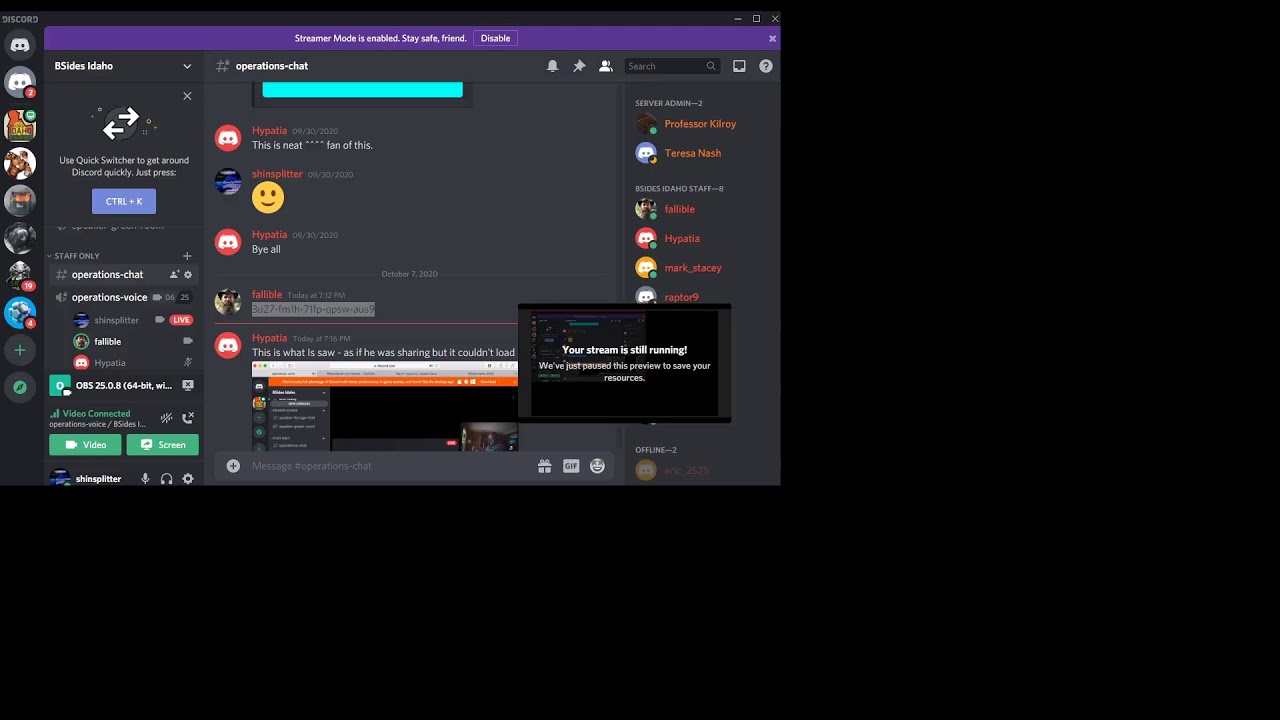
settings can you see it no not yet you're showing show the wrong screen on yeah the part of the joy OBS you can you can select which portion of the screen you want to show so you would do that in sources if you see down at the botom there's scenes and then there sources okay got
[Music]
it now you can do the same down there for um this is kind of where this becomes really cool you'll want to select your audio input capture that's going to be one of your uh sources coming in that will be your normal microphone that you're using you can also have your audio output capture if you want to have I think we'll probably need that desktop audio I think is one of the default options turn off my or maybe not if oh by the way if you have headphones that might help for any of the people doing this um if you you can end up with some weird feedback situations that only show up on the
stream if you don't set this up properly all right so who's doing this stream right now uh I am um the first first thing that we'll probably want you to do you've got your can you expand the size of the the screen that you're sharing I want to see your audio mixer and sources stuff at the [Music] bottom double check on sh [Music] screen I also want to know if we are streaming any sound at all to the Stream
[Music] capure okay streaming can you hear me [Music] now I can hear you on yep I can hear you over on YouTube okay great and then start recording do it just record it out to an OBS file let's see I've started streaming and now I start recording and I get a failed to start recording or um too many concurrent sessions [Music]
Related talks
 30:34
30:34 22:47
22:47 31:19
31:19 44:52
44:52 39:40
39:40 43:55
43:55